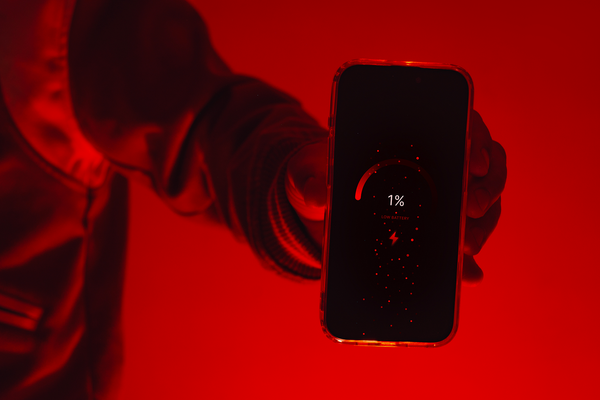
Why is my Android battery draining so fast?
A fast-draining battery is one of the most common smartphone issues, but in most cases, it can be resolved without replacing your device. If you’re searching for an Android Battery Draining Fast Fix, understanding the root causes is the first step toward restoring Android Battery Life and improving your phone’s overall performance.
Why Is My Android Battery Draining So Fast?
Several factors can contribute to Android Battery Draining Fast, including software settings, background processes, and hardware wear. Here are the most common reasons behind excessive Android Battery Drain:
1. Background Apps Consuming Power
Many apps continue running in the background even when you’re not actively using them. Social media, messaging, navigation, and streaming apps can significantly increase Android Phone Battery Drain by constantly syncing data and sending notifications.
2. High Screen Brightness and Refresh Rate
Your display is one of the biggest power consumers. Keeping brightness at maximum or using a high refresh rate can reduce Android Battery Performance and cause your battery to drain much faster.
3. Outdated Software
Older versions of Android may contain bugs that lead to excessive Android Battery Problems. Installing the latest system updates often includes battery optimization improvements and bug fixes.
4. Poor Battery Optimization Settings
If Android Battery Optimization is disabled for multiple apps, they may continue consuming resources unnecessarily. Enabling battery optimization helps limit background activity and extends battery life.
5. GPS, Bluetooth, and Wi-Fi Always Active
Location services, Bluetooth, and Wi-Fi constantly searching for connections can increase power usage. Turning off these features when not needed is one of the easiest Android Battery Saving Tips.
6. Battery-Hungry Apps
Gaming apps, video streaming platforms, and apps with continuous background synchronization are common causes of Android Battery Drain. You can identify these apps by checking Battery Usage in your phone’s settings.
7. Malware or Poorly Optimized Apps
Apps downloaded from untrusted sources may consume excessive battery or run hidden processes, leading to Android Battery Draining Fast. Regularly reviewing installed apps helps prevent these issues.
8. Aging Battery
Lithium-ion batteries naturally lose capacity over time. If your phone is several years old, a worn-out battery may be responsible for persistent Android Battery Problems despite software optimizations.
9. Network Signal Issues
When your phone struggles to maintain a weak mobile signal, it uses more power searching for a stable connection, increasing Android Phone Battery Drain throughout the day.
10. Excessive Notifications and Auto Sync
Frequent notifications, automatic backups, email syncing, and cloud synchronization keep waking your device, reducing Android Battery Life faster than expected.
How to Fix Android Battery Drain
If you’re looking for an effective Android Battery Draining Fast Fix, follow these practical steps:
- Enable Android Battery Optimization for apps.
- Reduce screen brightness or enable Adaptive Brightness.
- Turn on Battery Saver mode.
- Close or uninstall apps consuming excessive battery.
- Disable GPS, Bluetooth, or Wi-Fi when not in use.
- Keep Android and apps updated.
- Reduce screen timeout duration.
- Limit background app refresh and auto-sync.
- Restart your phone regularly.
- Replace the battery if its health has significantly declined.
These steps can Fix Android Battery Drain and noticeably Improve Android Battery Life for most Android devices.
Best Android Battery Saving Tips
To maintain long-term battery health and maximize Android Battery Performance, follow these recommendations:
- Use Dark Mode on OLED displays.
- Avoid exposing your phone to extreme temperatures.
- Charge your battery between 20% and 80% when possible.
- Use original or certified chargers.
- Remove unused apps.
- Monitor battery usage regularly.
- Enable Adaptive Battery if your device supports it.
- Avoid unnecessary live wallpapers and widgets.
Conclusion
If you’re experiencing Android Battery Draining Fast, the issue is often caused by background apps, display settings, outdated software, or poor optimization. Applying the right Android Battery Draining Fast Fix techniques, such as enabling Android Battery Optimization, managing power-hungry apps, and following proven Android Battery Saving Tips, can significantly reduce Android Battery Drain, resolve common Android Battery Problems, and Improve Android Battery Life while maintaining excellent Android Battery Performance.
What Are the Best Tips to Prevent Android Battery Drain?
If your smartphone constantly runs out of power before the end of the day, you’re not alone. Finding an effective Android Battery Draining Fast Fix is essential for maintaining productivity and extending your phone’s lifespan. Fortunately, preventing Android Battery Drain doesn’t always require replacing your battery. By making a few changes to your settings and daily habits, you can Improve Android Battery Life, reduce Android Phone Battery Drain, and enjoy better Android Battery Performance.
1. Enable Android Battery Optimization
One of the most effective ways to prevent Android Battery Drain is to turn on Android Battery Optimization. This feature limits background activity for apps that consume excessive power.
How to enable it:
- Open Settings.
- Tap Battery.
- Select Battery Optimization.
- Optimize apps that don’t need to run continuously.
Using Android Battery Optimization is a simple Android Battery Draining Fast Fix that can noticeably extend battery life.
2. Reduce Screen Brightness
Your display is one of the biggest battery consumers. Lowering brightness or enabling Adaptive Brightness helps Improve Android Battery Life while reducing unnecessary power usage.
Tip: Keep brightness below 50% whenever possible.
3. Turn On Battery Saver Mode
Battery Saver reduces background activity, limits visual effects, and minimizes system processes. It’s an excellent Android Battery Draining Fast Fix when your battery starts running low.
Most Android phones automatically allow Battery Saver to activate at a selected battery percentage.
4. Close or Restrict Background Apps
Many apps continue running even after you stop using them, causing Android Phone Battery Drain.
To reduce battery usage:
- Restrict background activity for rarely used apps.
- Uninstall apps you no longer need.
- Review battery usage regularly.
This helps eliminate hidden sources of Android Battery Problems.
5. Keep Android and Apps Updated
Software updates often include bug fixes, security improvements, and battery optimizations. Installing the latest Android version can resolve Android Battery Draining Fast issues caused by outdated software.
Always keep:
- Android OS updated.
- Google Play Services updated.
- Frequently used apps updated.
6. Disable Unused Features
Features that constantly search for connections consume battery even when you’re not using them.
Turn off when unnecessary:
- GPS
- Bluetooth
- NFC
- Wi-Fi
- Mobile Hotspot
Reducing these background services is one of the easiest Android Battery Saving Tips.
7. Reduce Screen Timeout
A long screen timeout wastes battery if you frequently leave your phone unlocked.
Set the display timeout to:
- 15 seconds
- 30 seconds
This small adjustment can significantly Improve Android Battery Life over time.
8. Monitor Battery Usage
Android provides built-in battery statistics that show which apps consume the most power.
Go to:
Settings → Battery → Battery Usage
If a single app uses an unusually high percentage, consider updating, restricting, or uninstalling it to reduce Android Battery Drain.
9. Enable Dark Mode
Phones with OLED or AMOLED displays use less power when displaying darker colors.
Benefits include:
- Better Android Battery Performance
- Reduced eye strain
- Longer battery life
Dark Mode is a simple but effective Android Battery Draining Fast Fix for compatible devices.
10. Limit Notifications and Auto-Sync
Every notification wakes your phone’s processor and screen.
Reduce battery usage by:
- Disabling unnecessary notifications.
- Turning off auto-sync for unused accounts.
- Increasing email sync intervals.
These steps help prevent unnecessary Android Phone Battery Drain.
11. Avoid Extreme Temperatures
High heat accelerates battery degradation and can cause permanent Android Battery Problems.
For the best battery health:
- Avoid leaving your phone in direct sunlight.
- Remove thick cases while charging if the device overheats.
- Keep your phone within recommended operating temperatures.
12. Charge Your Battery Properly
Healthy charging habits contribute to long-term Android Battery Performance.
Best practices include:
- Keep battery levels between 20% and 80% when possible.
- Use certified chargers.
- Avoid frequent full discharges.
- Don’t leave your phone plugged in overnight regularly.
13. Restart Your Phone Regularly
A quick restart closes unnecessary background processes and clears temporary system issues that may contribute to Android Battery Draining Fast.
Restarting once every few days helps maintain smooth performance.
14. Remove Battery-Draining Apps
Some poorly optimized apps continuously consume power even when idle.
Signs include:
- Rapid battery loss after installing an app.
- Device overheating.
- High battery usage in Battery Settings.
Removing these apps is often the quickest Android Battery Draining Fast Fix.
15. Replace an Aging Battery
If your phone is several years old and all optimization methods fail, battery wear may be the cause.
Replacing the battery can:
- Resolve persistent Android Battery Problems.
- Restore Android Battery Performance.
- Significantly Improve Android Battery Life.
Conclusion
The best Android Battery Draining Fast Fix starts with identifying the cause of Android Battery Drain and applying practical solutions. Enabling Android Battery Optimization, managing background apps, updating software, reducing screen brightness, and following proven Android Battery Saving Tips can greatly Improve Android Battery Life and minimize Android Phone Battery Drain. By adopting these habits, you’ll experience fewer Android Battery Problems, better Android Battery Performance, and a device that lasts longer throughout the day.
Need Expert Android App Development or Optimization?
At IT Planet Software House, we specialize in building high-performance Android applications that are optimized for speed, security, and battery efficiency. Whether you need a new Android app, performance optimization, or technical support, our experienced developers can help you create reliable mobile solutions tailored to your business needs. Contact us today to learn how we can deliver battery-efficient, high-quality Android applications.
When Should I Replace My Android Phone Battery?
If you’ve tried every Android Battery Draining Fast Fix but your phone still loses power quickly, it may be time to replace the battery. While software settings and Android Battery Optimization can solve many cases of Android Battery Drain, all rechargeable batteries wear out over time. Knowing when to replace your Android phone battery can help restore Android Battery Life, improve performance, and prevent unexpected shutdowns.
Signs You Should Replace Your Android Phone Battery
1. Your Battery Drains Extremely Fast
One of the clearest signs that you need a replacement is severe Android Battery Drain. If your phone only lasts a few hours after a full charge despite following every Android Battery Draining Fast Fix, the battery may have reached the end of its lifespan.
2. The Battery Percentage Changes Suddenly
If your battery jumps from 50% to 20% or your phone shuts down even though it still shows charge remaining, the battery is no longer holding power accurately. This is a common Android Battery Problem caused by battery aging.
3. Your Phone Overheats Frequently
While occasional warmth is normal during gaming or charging, constant overheating can reduce Android Battery Performance and damage internal components. If overheating continues after applying Android Battery Optimization, a battery replacement may be necessary.
4. The Battery Swells
A swollen battery is a serious safety concern. If you notice:
- The back cover lifting.
- The screen separating from the frame.
- The phone feeling unusually thick.
Stop using the device immediately and have the battery replaced by a qualified technician.
5. Charging Takes Longer Than Normal
If your phone charges much slower than before or never reaches 100%, the battery may no longer function properly. This issue often appears after years of regular use.
6. Battery Health Is Significantly Reduced
Many Android manufacturers provide battery health information through system settings or companion apps. If battery health falls below approximately 80% of its original capacity, you may notice:
- Increased Android Phone Battery Drain
- Shorter screen-on time
- Lower overall Android Battery Performance
7. Battery Optimization No Longer Helps
If you’ve already:
- Enabled Android Battery Optimization
- Limited background apps
- Reduced screen brightness
- Updated Android
- Used Battery Saver mode
and you’re still experiencing Android Battery Draining Fast, replacing the battery is often the most effective solution.
How Long Does an Android Battery Last?
Most Android phone batteries are designed to last 2–4 years or approximately 500–800 full charge cycles, depending on the manufacturer and usage habits. Heavy gaming, frequent fast charging, and exposure to high temperatures can shorten battery lifespan.
Can You Delay Battery Replacement?
Yes. Following good charging and maintenance habits can Improve Android Battery Life and extend battery longevity.
Some of the best Android Battery Saving Tips include:
- Keep battery levels between 20% and 80% when possible.
- Avoid exposing your phone to excessive heat.
- Use certified chargers.
- Enable Battery Saver when needed.
- Turn on Android Battery Optimization.
- Uninstall apps that cause excessive Android Battery Drain.
- Keep Android and apps updated.
These habits help reduce wear and maintain better Android Battery Performance.
Should You Replace the Battery or Buy a New Phone?
Replacing the battery is usually the better option if:
- The phone still performs well.
- The display and hardware are in good condition.
- Software updates are still supported.
- The replacement cost is much lower than buying a new device.
However, if your phone is very old, no longer receives security updates, and has multiple hardware issues in addition to Android Battery Problems, upgrading to a newer device may be the more cost-effective choice.
Conclusion
If you’ve tried every Android Battery Draining Fast Fix but still experience severe Android Battery Drain, rapid power loss, overheating, or unexpected shutdowns, it’s likely time to replace your Android phone battery. A healthy battery is essential for reliable Android Battery Life, reduced Android Phone Battery Drain, and improved Android Battery Performance. Before replacing the battery, always apply Android Battery Optimization settings and follow proven Android Battery Saving Tips to rule out software-related issues. If those steps don’t help, a battery replacement can restore your phone’s performance and significantly Improve Android Battery Life.
Need an Optimized Android App?
At IT Planet Software House, we develop Android applications that are optimized for efficiency, speed, and lower power consumption. Our team follows modern development practices to minimize Android Battery Drain, maximize Android Battery Performance, and deliver smooth, reliable mobile experiences. Whether you need a new Android app or want to optimize an existing one, we’re here to help.
How Often Should I Charge My Android Phone to Maintain Battery Health?
Maintaining good charging habits is one of the most effective Android Battery Draining Fast Fix strategies. While modern Android smartphones are equipped with advanced battery management systems, the way you charge your device still affects Android Battery Life and long-term Android Battery Performance. By following proper charging practices, you can reduce Android Battery Drain, prevent common Android Battery Problems, and keep your phone running efficiently for years.
Is It Better to Charge Your Android Phone Frequently?
Yes. Modern lithium-ion batteries perform best when they are charged in smaller, regular intervals rather than being completely drained before recharging. Unlike older battery technologies, today’s Android phones do not require full discharge cycles.
Instead of waiting until the battery reaches 0%, recharge your phone when it falls to around 20–30% and unplug it when it reaches about 80–90%. This simple habit can Improve Android Battery Life and slow down battery wear over time.
What Is the Ideal Charging Range?
Most battery experts recommend keeping your battery between 20% and 80% whenever possible.
Benefits of this charging range include:
- Reduced Android Battery Drain over the long term.
- Better Android Battery Performance.
- Less stress on the battery cells.
- Longer overall battery lifespan.
- Fewer Android Battery Problems caused by excessive charging cycles.
Although charging to 100% occasionally is perfectly safe, doing it every day isn’t necessary unless you need maximum battery life for extended use.
Should You Charge Your Phone Every Day?
For most users, charging once a day is completely normal. However, your charging frequency depends on how you use your phone.
You may need to charge more often if you:
- Play graphics-intensive games.
- Stream videos for long periods.
- Use GPS navigation frequently.
- Keep your screen brightness at maximum.
- Use 5G or mobile hotspot for extended periods.
Heavy usage naturally increases Android Phone Battery Drain, but following smart charging habits helps maintain battery health.
Is Overnight Charging Safe?
Most modern Android devices automatically stop charging once the battery reaches full capacity, making overnight charging generally safe. Many phones also include adaptive charging features that slow charging overnight and finish just before your usual wake-up time.
However, for the best Android Battery Performance, it’s still a good idea to:
- Use the original or a certified charger.
- Avoid placing the phone under pillows or blankets while charging.
- Keep the device in a cool, well-ventilated area.
How Can Proper Charging Reduce Battery Drain?
Charging habits alone won’t solve every battery issue, but they complement other Android Battery Draining Fast Fix methods.
For the best results:
- Enable Android Battery Optimization.
- Keep Android and your apps updated.
- Remove apps causing excessive Android Battery Drain.
- Limit unnecessary background activity.
- Turn on Battery Saver when needed.
- Reduce screen brightness and screen timeout.
- Follow proven Android Battery Saving Tips to reduce daily power consumption.
Combining these practices can significantly Improve Android Battery Life.
Common Charging Mistakes to Avoid
Avoid these habits if you want to maximize battery lifespan:
- Frequently letting the battery reach 0%.
- Keeping the battery at 100% for extended periods every day.
- Using low-quality or counterfeit chargers.
- Charging the phone in very hot environments.
- Ignoring software updates that include battery improvements.
- Running too many battery-intensive apps simultaneously.
These habits can increase Android Battery Drain and contribute to long-term Android Battery Problems.
Additional Android Battery Saving Tips
To maintain excellent battery health, consider these daily practices:
- Turn on Android Battery Optimization for all supported apps.
- Use Adaptive Battery if available.
- Disable Wi-Fi, Bluetooth, GPS, and NFC when not in use.
- Enable Dark Mode on OLED displays.
- Close or restrict unnecessary background apps.
- Monitor Battery Usage regularly in Settings.
- Restart your phone occasionally to clear unnecessary background processes.
These Android Battery Saving Tips help reduce Android Phone Battery Drain while improving overall efficiency.
Conclusion
Charging your Android phone before the battery drops below 20% and unplugging it around 80–90% is one of the best ways to maintain long-term battery health. Combined with Android Battery Optimization, regular software updates, and smart Android Battery Saving Tips, these charging habits help reduce Android Battery Drain, prevent common Android Battery Problems, Improve Android Battery Life, and maintain reliable Android Battery Performance. If you’ve already tried every Android Battery Draining Fast Fix and your battery still drains rapidly, it may be time to have the battery tested or replaced.
Optimize Your Android Apps with IT Planet Software House
At IT Planet Software House, we develop high-performance Android applications that prioritize speed, efficiency, and battery-friendly operation. Our experienced developers use modern coding practices and optimization techniques to minimize Android Phone Battery Drain, enhance Android Battery Performance, and deliver seamless user experiences. Whether you need a custom Android app or want to optimize an existing application, our team is ready to help you build reliable, energy-efficient mobile solutions.
Is Fast Charging Harmful to Android Battery Health?
Fast charging has become a standard feature on most modern Android smartphones, allowing users to recharge their devices much more quickly than traditional charging methods. Many people wonder whether this convenience affects battery longevity. The good news is that, when used correctly, fast charging is generally safe. However, understanding how it works can help you apply the best Android Battery Draining Fast Fix strategies, reduce Android Battery Drain, and Improve Android Battery Life.
How Does Fast Charging Work?
Fast charging increases the amount of power delivered to your phone during the early stages of charging. Modern Android devices include built-in battery management systems that regulate charging speed, temperature, and voltage.
As the battery approaches full capacity, the charging speed automatically slows down to protect the battery. This intelligent charging process helps reduce wear and minimizes the risk of Android Battery Problems.
Is Fast Charging Harmful?
For most users, the answer is no. Fast charging is designed to work safely with compatible devices and certified chargers. Android manufacturers build multiple safety mechanisms into their phones to prevent overheating, overcharging, and excessive voltage.
However, frequent exposure to high temperatures can gradually reduce battery capacity over time. Heat, rather than fast charging itself, is one of the biggest factors affecting Android Battery Life.
Can Fast Charging Cause Android Battery Drain?
Fast charging does not directly cause Android Battery Drain. If your battery drains quickly after charging, the issue is usually related to:
- Background apps consuming power.
- Poor Android Battery Optimization settings.
- High screen brightness.
- GPS, Bluetooth, or Wi-Fi running continuously.
- Software bugs or outdated apps.
- Battery aging.
If you’re experiencing Android Phone Battery Drain, applying a proper Android Battery Draining Fast Fix involves identifying these causes instead of blaming fast charging alone.
Tips for Safe Fast Charging
Follow these best practices to maintain battery health while using fast charging:
1. Use Original or Certified Chargers
Always use the charger supplied by your phone manufacturer or a certified replacement. Low-quality chargers may deliver unstable power and contribute to Android Battery Problems.
2. Avoid Excessive Heat
Heat is one of the biggest threats to battery longevity.
To keep temperatures under control:
- Charge your phone in a cool, well-ventilated area.
- Avoid charging in direct sunlight.
- Remove thick protective cases if your phone becomes unusually warm.
3. Don’t Keep Your Battery at 100% Constantly
Although modern phones prevent overcharging, keeping the battery at full charge for long periods may increase battery wear over time.
For better Android Battery Life, try to keep the battery between 20% and 80% whenever practical.
4. Enable Android Battery Optimization
Turning on Android Battery Optimization helps reduce unnecessary background activity and complements good charging habits.
This feature is one of the easiest ways to reduce Android Battery Drain and improve efficiency.
5. Keep Software Updated
Manufacturers regularly release software updates that improve charging efficiency, battery management, and overall system stability.
Keeping Android updated is an important part of any Android Battery Draining Fast Fix strategy.
Android Battery Saving Tips While Charging
To maximize battery lifespan, follow these Android Battery Saving Tips:
- Charge before the battery drops below 20%.
- Avoid letting the battery reach 0% frequently.
- Disconnect the charger after reaching about 80–90% if convenient.
- Avoid using demanding apps while charging.
- Turn on Battery Saver when needed.
- Close unnecessary background apps.
- Keep your phone updated with the latest Android version.
These habits help Improve Android Battery Life and reduce unnecessary battery wear.
When Fast Charging May Be a Concern
Fast charging may require extra attention if:
- Your phone becomes excessively hot every time it charges.
- Charging suddenly becomes much slower than normal.
- The battery drains unusually fast after charging.
- The device shuts down unexpectedly.
- The battery appears swollen or damaged.
In these cases, you should stop using the charger and have the device inspected by an authorized service center.
Conclusion
Fast charging is not harmful to Android battery health when you use compatible devices and certified chargers. The biggest factors affecting Android Battery Life are heat, poor charging habits, and battery age—not fast charging itself. Combining proper charging practices with Android Battery Optimization, regular software updates, and proven Android Battery Saving Tips can reduce Android Battery Drain, prevent common Android Battery Problems, and serve as an effective Android Battery Draining Fast Fix. By taking care of your battery, you can enjoy reliable performance and longer-lasting power throughout the life of your Android phone.
Optimize Android Apps with IT Planet Software House
At IT Planet Software House, we build Android applications that are optimized for speed, efficiency, and lower power consumption. Our experienced developers follow industry best practices to minimize Android Phone Battery Drain, improve application performance, and deliver smooth, battery-efficient user experiences. Whether you need custom Android app development, app optimization, or performance enhancements, our team is ready to help you create reliable mobile solutions.
How Do I Enable Battery Optimization on Android?
If you’re experiencing excessive battery usage, enabling Android Battery Optimization is one of the most effective Android Battery Draining Fast Fix solutions. This built-in Android feature limits unnecessary background activity, helping reduce Android Battery Drain, improve Android Battery Life, and prevent common Android Battery Problems. By optimizing how apps use power, you can also minimize Android Phone Battery Drain and enjoy better overall device performance.
What Is Android Battery Optimization?
Android Battery Optimization is a power management feature that automatically restricts apps from running continuously in the background. It reduces battery consumption by limiting background processes, notifications, and unnecessary system activity when apps are not actively being used.
Benefits include:
- Reduced Android Battery Drain
- Longer Android Battery Life
- Improved device efficiency
- Better battery performance throughout the day
- Fewer background apps consuming power
For most users, enabling this feature is a simple Android Battery Draining Fast Fix that requires only a few taps.
How to Enable Battery Optimization on Android
The exact menu may vary depending on your phone manufacturer, but the process is generally similar.
Method 1: Through Battery Settings
- Open Settings.
- Tap Battery.
- Select Battery Optimization or Battery Usage.
- Choose All Apps if available.
- Select the app you want to optimize.
- Tap Optimize or Allow Battery Optimization.
Once enabled, Android automatically manages the app’s background activity to reduce unnecessary battery usage.
Method 2: Through App Settings
Some Android devices allow battery optimization directly from an app’s settings.
- Open Settings.
- Tap Apps.
- Select the desired app.
- Tap Battery.
- Choose Optimized or Restricted, depending on your Android version.
This helps reduce Android Phone Battery Drain caused by apps running continuously in the background.
Enable Adaptive Battery
Many Android phones also include Adaptive Battery, an intelligent feature that learns how you use your apps and prioritizes power for the ones you use most frequently.
To enable it:
- Open Settings.
- Tap Battery.
- Select Adaptive Battery.
- Turn it On.
Adaptive Battery works alongside Android Battery Optimization to further Improve Android Battery Life.
Which Apps Should Not Be Optimized?
Although most apps benefit from battery optimization, certain applications may need unrestricted background access, such as:
- Alarm clock apps
- Fitness trackers
- Health monitoring apps
- Messaging apps requiring instant notifications
- Navigation apps during active use
If notifications are delayed after enabling optimization, you may need to exclude those specific apps from battery restrictions.
Additional Android Battery Saving Tips
Enabling Android Battery Optimization is only one part of an effective Android Battery Draining Fast Fix strategy. Combine it with these Android Battery Saving Tips for even better results:
- Lower screen brightness or enable Adaptive Brightness.
- Turn on Battery Saver mode.
- Reduce screen timeout duration.
- Disable Bluetooth, GPS, and Wi-Fi when not in use.
- Remove unused or battery-intensive apps.
- Keep Android and installed apps updated.
- Use Dark Mode on OLED displays.
- Restart your phone regularly.
- Monitor battery usage in Settings.
These simple habits help reduce Android Battery Drain while improving overall battery efficiency.
Common Battery Optimization Mistakes
To avoid unnecessary Android Battery Problems, keep these points in mind:
- Don’t disable battery optimization for every app.
- Avoid installing battery booster apps from untrusted sources.
- Keep software updated for the latest battery improvements.
- Use certified chargers and accessories.
- Don’t ignore apps that consume unusually high amounts of battery.
Following these best practices helps maintain healthy Android Battery Life over the long term.
When Battery Optimization Isn’t Enough
If your phone continues experiencing severe Android Phone Battery Drain after enabling optimization, the problem may be caused by:
- A worn-out battery.
- Faulty or poorly optimized apps.
- Malware or unwanted software.
- Hardware issues.
- Battery degradation due to age.
In these situations, you may need professional diagnostics or a battery replacement.
Conclusion
Enabling Android Battery Optimization is one of the easiest and most effective ways to reduce Android Battery Drain and improve your phone’s efficiency. Combined with smart charging habits, regular software updates, and practical Android Battery Saving Tips, this Android Battery Draining Fast Fix can significantly Improve Android Battery Life, reduce Android Phone Battery Drain, and minimize common Android Battery Problems. If battery optimization doesn’t resolve the issue, checking battery health or seeking professional support may be the next step.
Optimize Battery-Efficient Android Apps with IT Planet Software House
At IT Planet Software House, we develop Android applications that deliver excellent performance while minimizing power consumption. Our experienced developers use modern optimization techniques to reduce unnecessary resource usage, improve application responsiveness, and create battery-efficient mobile experiences. Whether you need custom Android app development, app optimization, or performance improvements, our team can help you build reliable Android solutions that maximize user satisfaction.
Can Bluetooth and Wi-Fi Cause Battery Drain on Android?
Yes, Bluetooth and Wi-Fi can contribute to Android Battery Drain, but their impact depends on how you use them. Modern Android smartphones are designed to manage wireless connections efficiently, so simply leaving Bluetooth or Wi-Fi turned on usually has only a small effect on Android Battery Life. However, continuous scanning, weak network signals, and connected devices can increase Android Phone Battery Drain. Understanding how these features work is an important part of finding the right Android Battery Draining Fast Fix and keeping your phone running longer.
How Bluetooth Affects Android Battery Life
Bluetooth uses relatively little power when it is turned on but not actively connected. Battery usage increases when your phone is constantly communicating with devices such as:
- Wireless earbuds
- Smartwatches
- Fitness trackers
- Bluetooth speakers
- Car audio systems
- Wireless keyboards and mice
Streaming music for several hours through Bluetooth can consume more battery than leaving Bluetooth enabled without an active connection.
Tips to Reduce Bluetooth Battery Usage
To Improve Android Battery Life, follow these Android Battery Saving Tips:
- Turn off Bluetooth when you’re not using it.
- Disconnect devices you no longer need.
- Remove old or unused paired devices.
- Keep Bluetooth accessories updated with the latest firmware.
- Avoid connecting multiple Bluetooth devices simultaneously unless necessary.
These simple habits can help reduce unnecessary Android Battery Drain.
How Wi-Fi Affects Android Battery Life
Wi-Fi is generally more energy-efficient than mobile data when connected to a strong, stable network. However, Wi-Fi can increase Android Phone Battery Drain in certain situations, such as:
- Constantly searching for available networks.
- Connecting to weak Wi-Fi signals.
- Frequently switching between Wi-Fi and mobile data.
- Running cloud backups or large downloads in the background.
If your phone is always searching for a network, battery consumption can increase significantly.
Tips to Reduce Wi-Fi Battery Usage
For an effective Android Battery Draining Fast Fix, consider these recommendations:
- Turn off Wi-Fi when you’re away from trusted networks.
- Connect to strong, stable Wi-Fi signals whenever possible.
- Disable automatic connection to unknown networks.
- Pause large downloads when battery is low.
- Turn off Wi-Fi scanning if you rarely use location-based services that require it.
These adjustments can help Improve Android Battery Life while reducing unnecessary wireless activity.
Enable Android Battery Optimization
One of the best ways to manage battery usage is to enable Android Battery Optimization. This built-in feature limits background activity for apps that use Wi-Fi or Bluetooth unnecessarily.
To enable it:
- Open Settings.
- Tap Battery.
- Select Battery Optimization.
- Optimize apps that consume excessive power.
Using Android Battery Optimization is one of the easiest ways to reduce Android Battery Drain without affecting normal device performance.
Other Factors That Cause Battery Drain
Bluetooth and Wi-Fi are only part of the picture. Many other factors can contribute to Android Battery Problems, including:
- High screen brightness.
- Background apps running continuously.
- GPS and location services.
- Outdated Android software.
- Malware or poorly optimized apps.
- Heavy gaming or video streaming.
- Weak mobile network signals.
- Aging batteries.
Addressing these issues alongside managing wireless connections provides a more complete Android Battery Draining Fast Fix.
Best Android Battery Saving Tips
To maximize Android Battery Life, follow these practical tips:
- Enable Android Battery Optimization.
- Turn on Battery Saver mode when needed.
- Lower screen brightness or enable Adaptive Brightness.
- Reduce screen timeout duration.
- Close apps running in the background.
- Keep Android and installed apps updated.
- Use Dark Mode on OLED displays.
- Restart your phone regularly.
- Charge your battery using certified chargers.
- Keep your battery level between 20% and 80% when practical.
These habits not only reduce Android Phone Battery Drain but also help maintain long-term battery health.
When Should You Be Concerned?
If your battery continues to drain rapidly even after disabling Bluetooth and Wi-Fi, the issue may be caused by:
- A damaged or aging battery.
- Faulty applications consuming excessive power.
- Software bugs.
- Hardware issues.
- Excessive background processes.
In such cases, checking battery usage in Settings > Battery or having the device inspected by a qualified technician may be necessary.
Conclusion
Bluetooth and Wi-Fi can contribute to Android Battery Drain, but they are rarely the primary cause of serious battery issues. Their impact depends on how often they are used, signal strength, and the apps running on your device. Combining smart wireless usage with Android Battery Optimization, regular software updates, and proven Android Battery Saving Tips provides an effective Android Battery Draining Fast Fix. By managing your connections wisely and addressing other common Android Battery Problems, you can Improve Android Battery Life, reduce Android Phone Battery Drain, and enjoy more reliable battery performance throughout the day.
Optimize Battery-Efficient Android Apps with IT Planet Software House
At IT Planet Software House, we build high-performance Android applications designed for speed, reliability, and efficient power consumption. Our experienced developers use modern coding practices and advanced optimization techniques to reduce unnecessary resource usage, improve app responsiveness, and minimize battery consumption. Whether you need custom Android app development, performance optimization, or application maintenance, our team can help you create Android solutions that deliver an exceptional user experience while conserving battery life.
Should I Turn Off Location Services to Save Android Battery?
Yes, turning off location services when you don’t need them can help reduce Android Battery Drain and extend Android Battery Life. GPS and other location technologies continuously use your phone’s hardware and may keep certain apps active in the background. While location services are essential for navigation, ride-sharing, weather updates, and emergency features, disabling them when they aren’t needed is a practical Android Battery Draining Fast Fix. Combined with Android Battery Optimization and other Android Battery Saving Tips, managing location services can significantly improve Android Battery Performance.
How Do Location Services Affect Battery Life?
Android uses several technologies to determine your location, including:
- GPS satellites
- Wi-Fi networks
- Mobile network towers
- Bluetooth scanning
When multiple apps frequently request your location, your phone uses additional power, leading to Android Phone Battery Drain. Apps such as maps, fitness trackers, food delivery services, and social media platforms often access location data even when running in the background.
Should You Turn Off Location Services?
If you are not using location-based apps, turning off location services can help Improve Android Battery Life. However, you don’t need to keep location disabled all the time.
You should consider turning it off when:
- You’re at home or work and don’t need navigation.
- You’re not using ride-sharing or delivery apps.
- You want to conserve battery during travel.
- Your battery is running low.
- You’re trying an Android Battery Draining Fast Fix to identify what’s causing excessive battery usage.
When you need navigation or other location-dependent features, you can turn location services back on.
How to Turn Off Location Services on Android
The steps may vary slightly depending on your device manufacturer, but generally:
- Open Settings.
- Tap Location.
- Toggle Use Location to Off.
You can also access the Location shortcut from the Quick Settings panel on many Android devices.
Manage Location Permissions for Individual Apps
Instead of disabling location completely, you can control which apps have access.
To manage permissions:
- Open Settings.
- Tap Apps.
- Select an app.
- Tap Permissions.
- Choose Location.
- Select one of the following:
- Allow all the time
- Allow only while using the app
- Ask every time
- Don’t allow
Choosing Allow only while using the app is usually the best balance between convenience and battery efficiency.
Enable Android Battery Optimization
Another effective Android Battery Draining Fast Fix is enabling Android Battery Optimization. This feature limits unnecessary background activity, including apps that frequently access your location.
To enable it:
- Open Settings.
- Tap Battery.
- Select Battery Optimization.
- Optimize apps that don’t require constant background activity.
Using Android Battery Optimization helps reduce Android Phone Battery Drain while maintaining normal functionality.
Additional Android Battery Saving Tips
Managing location services works even better when combined with these Android Battery Saving Tips:
- Turn on Battery Saver mode.
- Reduce screen brightness.
- Shorten screen timeout.
- Disable Bluetooth and Wi-Fi when not needed.
- Close unnecessary background apps.
- Keep Android and apps updated.
- Enable Adaptive Battery if available.
- Use Dark Mode on OLED displays.
- Restart your phone regularly.
These habits can Improve Android Battery Life and maintain strong Android Battery Performance.
When Should You Leave Location Services On?
There are situations where keeping location enabled is important, such as:
- Using Google Maps or other navigation apps.
- Emergency location services.
- Fitness tracking.
- Finding a lost phone.
- Ride-sharing applications.
- Weather apps that provide local forecasts.
In these cases, turning off location may reduce functionality more than it saves battery.
Other Common Causes of Android Battery Drain
If disabling location services doesn’t solve your battery issues, consider other possible causes of Android Battery Problems, including:
- High screen brightness.
- Battery-intensive apps.
- Weak mobile network signals.
- Continuous Bluetooth or Wi-Fi scanning.
- Outdated Android software.
- Malware or poorly optimized apps.
- An aging battery.
Addressing these factors alongside location settings provides a more complete Android Battery Draining Fast Fix.
Conclusion
Turning off location services when they’re not needed is a simple and effective way to reduce Android Battery Drain and Improve Android Battery Life. Rather than disabling location permanently, it’s often better to manage app permissions and allow access only while apps are in use. Combined with Android Battery Optimization, smart charging habits, and practical Android Battery Saving Tips, this approach can reduce Android Phone Battery Drain, improve Android Battery Performance, and minimize common Android Battery Problems. By making a few small adjustments, you can enjoy longer battery life without sacrificing the features you rely on.
Optimize Battery-Friendly Android Apps with IT Planet Software House
At IT Planet Software House, we develop Android applications that deliver outstanding performance while minimizing battery consumption. Our experienced developers use modern optimization techniques, efficient background processing, and best coding practices to reduce power usage and improve user experience. Whether you need custom Android app development, application optimization, or performance enhancements, our team can help you build reliable, battery-efficient Android solutions tailored to your business needs.
Should I Turn Off Location Services to Save Android Battery?
If you’re searching for an effective Android Battery Draining Fast Fix, you may wonder whether turning off location services can make a difference. The answer is yes—disabling location services when you don’t need them can help reduce Android Battery Drain and Improve Android Battery Life. While GPS and location features are essential for navigation, ride-sharing, weather apps, and emergency services, they can also increase Android Phone Battery Drain when apps continuously access your location in the background.
Managing location settings is one of the easiest Android Battery Saving Tips and can significantly improve Android Battery Performance when combined with other battery optimization techniques.
How Do Location Services Affect Android Battery Life?
Location services use multiple technologies to determine your phone’s position, including:
- GPS satellites
- Wi-Fi networks
- Mobile network towers
- Bluetooth scanning
Each time an app requests your location, your device consumes additional power. Apps that frequently use location include:
- Google Maps
- Food delivery apps
- Ride-sharing apps
- Fitness trackers
- Weather apps
- Social media platforms
If many apps constantly access your location, Android Battery Drain can increase noticeably.
Should You Turn Off Location Services?
Yes, if you are not actively using location-based features, turning off location services is a smart Android Battery Draining Fast Fix.
Consider disabling location when:
- You’re at home or in the office.
- You aren’t using navigation apps.
- Your battery is running low.
- You’re traveling and want to maximize battery life.
- You’re troubleshooting excessive Android Battery Problems.
When you need maps or other location-based services, simply turn location back on.
How to Turn Off Location Services on Android
Most Android phones follow similar steps:
- Open Settings.
- Tap Location.
- Turn Use Location off.
You can also access the Location toggle from the Quick Settings panel on many Android devices for faster control.
Manage Location Permissions Instead of Turning It Off Completely
Instead of disabling location for the entire phone, you can control access for individual apps.
Steps:
- Open Settings.
- Tap Apps.
- Select an app.
- Tap Permissions.
- Choose Location.
- Select:
- Allow all the time
- Allow only while using the app
- Ask every time
- Don’t allow
For most apps, Allow only while using the app provides the best balance between convenience and battery efficiency.
Enable Android Battery Optimization
Another powerful Android Battery Draining Fast Fix is enabling Android Battery Optimization.
To enable it:
- Open Settings.
- Tap Battery.
- Select Battery Optimization.
- Optimize apps that don’t need constant background access.
Android Battery Optimization automatically limits unnecessary background processes, helping reduce Android Phone Battery Drain and extend Android Battery Life.
Additional Android Battery Saving Tips
Besides managing location services, follow these Android Battery Saving Tips:
- Enable Battery Saver mode.
- Reduce screen brightness.
- Use Adaptive Brightness.
- Lower screen refresh rate if supported.
- Shorten screen timeout.
- Disable Bluetooth and Wi-Fi when not needed.
- Close unnecessary background apps.
- Keep Android and apps updated.
- Use Dark Mode on OLED displays.
- Restart your phone regularly.
- Charge using certified chargers.
These habits help Improve Android Battery Life while maintaining excellent Android Battery Performance.
Other Causes of Android Battery Drain
If disabling location services doesn’t solve the issue, other factors may be responsible for Android Battery Problems, including:
- High screen brightness.
- Background applications.
- Poor mobile network signal.
- Continuous Bluetooth or Wi-Fi scanning.
- Malware or poorly optimized apps.
- Outdated Android software.
- An aging battery.
A complete Android Battery Draining Fast Fix involves identifying all possible sources of Android Battery Drain, not just location services.
When Should You Keep Location Services On?
Keep location enabled when using:
- Navigation apps like Google Maps.
- Ride-sharing services.
- Food delivery tracking.
- Fitness and cycling apps.
- Emergency location services.
- Find My Device features.
- Local weather applications.
These apps rely on accurate location information and may not function correctly if location services are disabled.
Conclusion
Turning off location services when they’re not needed is a simple yet effective Android Battery Draining Fast Fix. It helps reduce Android Battery Drain, minimizes Android Phone Battery Drain, and can significantly Improve Android Battery Life. For the best results, combine this approach with Android Battery Optimization, smart charging habits, regular software updates, and practical Android Battery Saving Tips. By carefully managing location permissions and background activity, you can reduce common Android Battery Problems and enjoy better Android Battery Performance throughout the day.
Optimize Android Apps with IT Planet Software House
At IT Planet Software House, we specialize in developing high-performance Android applications that are optimized for speed, efficiency, and low power consumption. Our expert developers use modern coding standards, efficient background processing, and advanced optimization techniques to reduce battery usage while delivering exceptional user experiences. Whether you need custom Android app development, app optimization, or ongoing maintenance, our team is ready to help you build reliable, battery-efficient Android solutions.
How Does the Refresh Rate Affect Android Battery Life?
The refresh rate of your Android phone plays an important role in both display smoothness and battery consumption. If you’re looking for an effective Android Battery Draining Fast Fix, adjusting your screen’s refresh rate is one of the easiest ways to reduce Android Battery Drain. While higher refresh rates provide smoother scrolling, gaming, and animations, they also require more power, which can impact Android Battery Life and overall Android Battery Performance.
Understanding how refresh rate works can help you make smarter choices to Improve Android Battery Life without sacrificing the features you use every day.
What Is Refresh Rate?
Refresh rate refers to how many times your phone’s display updates the image every second. It is measured in Hertz (Hz).
Common refresh rates include:
- 60Hz – Standard refresh rate with lower battery consumption.
- 90Hz – Smoother animations and scrolling with moderate power usage.
- 120Hz – Excellent for gaming and premium smartphones but consumes more battery.
- 144Hz – Available on some gaming phones and offers the smoothest experience while using the most power.
The higher the refresh rate, the more frequently the display updates, increasing power consumption and contributing to Android Phone Battery Drain.
Does a Higher Refresh Rate Drain More Battery?
Yes. A higher refresh rate generally increases Android Battery Drain because the display refreshes more often, requiring additional work from both the screen and graphics processor.
For example:
- 60Hz offers the best battery efficiency.
- 90Hz provides smoother performance with a small increase in battery usage.
- 120Hz delivers a premium user experience but can noticeably reduce Android Battery Life, especially during gaming or extended screen use.
If your battery drains quickly, lowering the refresh rate can be an effective Android Battery Draining Fast Fix.
When Should You Lower the Refresh Rate?
Reducing the refresh rate is helpful when:
- Your battery is running low.
- You’re traveling and need longer battery life.
- You’re not gaming or watching high-frame-rate content.
- You’re troubleshooting excessive Android Battery Problems.
- You want to maximize Android Battery Performance throughout the day.
For everyday tasks like messaging, calling, browsing, and reading, many users won’t notice a significant difference between 60Hz and higher refresh rates.
How to Change Refresh Rate on Android
The steps may vary by manufacturer, but generally:
- Open Settings.
- Tap Display.
- Select Refresh Rate or Motion Smoothness.
- Choose one of the available options:
- Standard (60Hz)
- High (90Hz or 120Hz)
- Adaptive or Dynamic Refresh Rate
Many modern Android phones include Adaptive Refresh Rate, which automatically switches between lower and higher refresh rates depending on what you’re doing. This helps balance smooth performance with improved battery efficiency.
Combine Refresh Rate Settings with Android Battery Optimization
Changing the refresh rate works even better when paired with Android Battery Optimization.
To enable it:
- Open Settings.
- Tap Battery.
- Select Battery Optimization.
- Optimize apps that don’t need unrestricted background activity.
Using Android Battery Optimization reduces unnecessary background processes, helping decrease Android Phone Battery Drain and extend battery life.
Additional Android Battery Saving Tips
Adjusting the refresh rate is only one part of an effective Android Battery Draining Fast Fix. Combine it with these Android Battery Saving Tips for the best results:
- Reduce screen brightness or enable Adaptive Brightness.
- Turn on Battery Saver mode when needed.
- Shorten screen timeout.
- Disable Bluetooth, Wi-Fi, or GPS when not in use.
- Close unnecessary background apps.
- Keep Android and installed apps updated.
- Enable Adaptive Battery if available.
- Use Dark Mode on OLED displays.
- Charge your phone with certified chargers.
- Restart your phone regularly to clear unnecessary background processes.
These habits help Improve Android Battery Life while maintaining reliable Android Battery Performance.
Other Causes of Android Battery Drain
If lowering the refresh rate doesn’t solve the issue, other factors may be responsible for Android Battery Problems, including:
- Battery-intensive applications.
- Weak mobile network signals.
- Continuous location tracking.
- Malware or poorly optimized apps.
- Outdated Android software.
- An aging battery.
- Excessive background synchronization.
A complete Android Battery Draining Fast Fix involves addressing all possible sources of Android Battery Drain, not just display settings.
Is Adaptive Refresh Rate the Best Choice?
For most users, yes. Adaptive refresh rate automatically lowers the refresh rate during activities like reading or viewing static content and increases it when smoother performance is needed for gaming or scrolling.
Benefits include:
- Better Android Battery Performance
- Longer Android Battery Life
- Smoother user experience
- Reduced unnecessary power consumption
This makes adaptive refresh rate an excellent balance between performance and battery efficiency.
Conclusion
The refresh rate has a direct impact on Android Battery Life because higher refresh rates require more power from your display and graphics processor. Lowering the refresh rate or using Adaptive Refresh Rate is an effective Android Battery Draining Fast Fix that can reduce Android Battery Drain, improve Android Battery Performance, and minimize Android Phone Battery Drain. When combined with Android Battery Optimization and other proven Android Battery Saving Tips, adjusting your display settings helps Improve Android Battery Life and provides a longer-lasting, more reliable Android experience.
Optimize Battery-Efficient Android Apps with IT Planet Software House
At IT Planet Software House, we develop high-performance Android applications that deliver smooth user experiences while minimizing battery consumption. Our expert developers optimize graphics rendering, background processes, and app performance to reduce power usage and enhance efficiency. Whether you need custom Android app development, application optimization, or performance improvements, our team can help you build Android solutions that are fast, reliable, and battery-friendly.
Does 5G Drain Android Battery Faster Than 4G?
Yes, 5G can drain your Android battery faster than 4G in certain situations. While 5G delivers faster download speeds, lower latency, and better connectivity, it also requires more power, especially in areas with weak or inconsistent 5G coverage. If you’re searching for an effective Android Battery Draining Fast Fix, understanding how 5G affects Android Battery Life can help you reduce Android Battery Drain and improve your phone’s overall efficiency.
The good news is that modern Android devices include intelligent power management features such as Android Battery Optimization, which help minimize battery consumption when using 5G networks.
Why Does 5G Use More Battery?
Several factors contribute to increased Android Phone Battery Drain when using 5G:
1. Faster Data Processing
5G transfers significantly more data than 4G, requiring your phone’s processor and modem to work harder. Downloading large files, streaming high-definition videos, and online gaming all increase Android Battery Drain.
2. Weak 5G Coverage
If you’re in an area where the 5G signal is weak, your phone continuously searches for a stronger connection or switches between 5G and 4G. This constant network switching can reduce Android Battery Life and contribute to common Android Battery Problems.
3. Higher Network Activity
Many users take advantage of faster 5G speeds by streaming more content, downloading large files, and using cloud-based applications. Increased activity naturally consumes more power and affects Android Battery Performance.
4. Background App Usage
Apps often use the faster network to synchronize data more frequently. Without proper Android Battery Optimization, background processes can increase Android Phone Battery Drain.
Is 5G Always Worse for Battery Life?
Not necessarily. In areas with strong and stable 5G coverage, the battery difference between 5G and 4G may be relatively small. Newer Android smartphones are also equipped with more efficient processors and intelligent modems that automatically manage network usage to improve Android Battery Performance.
Many devices include Smart Network Switching or Adaptive Connectivity, which automatically switch between 5G and 4G depending on network quality and power requirements.
How to Reduce Battery Drain While Using 5G
If you’re experiencing excessive battery usage, try these Android Battery Saving Tips:
Switch to 4G When You Don’t Need 5G
If you’re browsing the web, sending messages, or making calls, 4G usually provides more than enough speed while consuming less battery.
Enable Android Battery Optimization
One of the easiest Android Battery Draining Fast Fix methods is enabling Android Battery Optimization.
To enable it:
- Open Settings.
- Tap Battery.
- Select Battery Optimization.
- Optimize apps that don’t need unrestricted background activity.
This helps reduce unnecessary Android Battery Drain caused by background applications.
Turn On Battery Saver Mode
Battery Saver limits background activity, reduces visual effects, and conserves energy when battery levels become low.
Reduce Background App Activity
Many apps continue syncing data over 5G even when you’re not actively using them.
To reduce Android Phone Battery Drain:
- Restrict background activity.
- Disable automatic syncing for unused apps.
- Remove unnecessary applications.
Lower Screen Brightness
Your display is often the largest source of power consumption. Lowering brightness or enabling Adaptive Brightness can significantly Improve Android Battery Life.
Additional Android Battery Saving Tips
To maximize Android Battery Performance, combine network management with these habits:
- Use Wi-Fi instead of mobile data whenever possible.
- Turn off Bluetooth and GPS when not needed.
- Enable Adaptive Battery if available.
- Keep Android and all apps updated.
- Use Dark Mode on OLED displays.
- Shorten screen timeout.
- Restart your phone regularly.
- Charge with certified chargers.
- Keep battery levels between 20% and 80% whenever practical.
These practices complement any Android Battery Draining Fast Fix strategy.
Other Causes of Android Battery Drain
Even if you’re using 4G, you may still experience Android Battery Problems due to:
- Battery-intensive apps.
- High screen refresh rates.
- Poor mobile signal.
- Malware or poorly optimized apps.
- Outdated Android software.
- Continuous location tracking.
- An aging battery.
Addressing these issues alongside network settings provides the most effective solution.
Should You Disable 5G?
You don’t need to disable 5G permanently. However, switching to 4G can be beneficial if:
- You’re traveling and need maximum battery life.
- Your area has weak 5G coverage.
- You’re not performing data-intensive tasks.
- Your battery is already running low.
For activities like streaming 4K videos, downloading large files, or cloud gaming, keeping 5G enabled may still provide the best overall experience.
Conclusion
Yes, 5G can increase Android Battery Drain compared to 4G, particularly in areas with weak signal strength or during heavy data usage. However, the impact depends on your device, network quality, and usage habits. Using Android Battery Optimization, limiting unnecessary background activity, switching to 4G when appropriate, and following proven Android Battery Saving Tips are all effective Android Battery Draining Fast Fix strategies. These practices help Improve Android Battery Life, reduce Android Phone Battery Drain, minimize Android Battery Problems, and maintain excellent Android Battery Performance.
Build Battery-Efficient Android Apps with IT Planet Software House
At IT Planet Software House, we develop high-performance Android applications that balance speed, functionality, and power efficiency. Our experienced developers optimize network communication, background processing, and application performance to reduce battery consumption while delivering a seamless user experience. Whether you need custom Android app development, performance optimization, or application maintenance, our team can help you build reliable, battery-efficient Android solutions that meet your business goals.
How Does Screen Brightness Affect Android Battery Life?
Screen brightness is one of the biggest factors affecting Android Battery Life. If you’re looking for an effective Android Battery Draining Fast Fix, adjusting your display brightness is one of the quickest and easiest solutions. The brighter your screen, the more power your display consumes, leading to increased Android Battery Drain and shorter battery life. By managing brightness levels and following smart Android Battery Saving Tips, you can significantly Improve Android Battery Life while reducing unnecessary Android Phone Battery Drain.
Why Does Screen Brightness Drain Battery?
Your smartphone’s display is one of the most power-hungry components. When the brightness is set to a high level, the screen requires more energy to illuminate every pixel.
Higher brightness results in:
- Increased Android Battery Drain
- Shorter Android Battery Life
- More heat generation
- Reduced battery efficiency during extended use
This is especially noticeable when you’re watching videos, playing games, reading outdoors, or using your phone for long periods.
Does Maximum Brightness Drain Battery Faster?
Yes. Keeping your screen at maximum brightness for extended periods can noticeably increase Android Phone Battery Drain. While full brightness is useful in direct sunlight, leaving it enabled indoors wastes battery power.
For everyday indoor use, a brightness level between 30% and 50% is usually sufficient and helps conserve battery.
How Adaptive Brightness Helps
Most Android phones include Adaptive Brightness, which automatically adjusts screen brightness based on surrounding lighting conditions.
Benefits include:
- Lower Android Battery Drain
- Improved viewing comfort
- Reduced manual adjustments
- Better overall battery efficiency
Adaptive Brightness is a simple yet effective Android Battery Draining Fast Fix because it prevents the display from using more power than necessary.
How to Adjust Screen Brightness
You can manually lower your brightness by following these steps:
- Open Settings.
- Tap Display.
- Select Brightness Level.
- Adjust the brightness slider to a comfortable level.
Alternatively, swipe down from the top of your screen to access the Quick Settings panel and adjust brightness instantly.
Enable Android Battery Optimization
Another effective Android Battery Draining Fast Fix is enabling Android Battery Optimization.
To enable it:
- Open Settings.
- Tap Battery.
- Select Battery Optimization.
- Optimize apps that don’t require unrestricted background activity.
Android Battery Optimization helps reduce unnecessary power consumption by limiting background processes, allowing you to Improve Android Battery Life without affecting everyday use.
Additional Android Battery Saving Tips
Lowering screen brightness works even better when combined with other Android Battery Saving Tips, such as:
- Enable Battery Saver mode.
- Reduce screen timeout to 15 or 30 seconds.
- Use Dark Mode on OLED displays.
- Disable Always-On Display if you rarely use it.
- Turn off Bluetooth, Wi-Fi, and GPS when not needed.
- Close unnecessary background apps.
- Keep Android and installed apps updated.
- Enable Adaptive Battery if available.
- Restart your phone regularly.
- Charge your phone using certified chargers.
Together, these habits help minimize Android Battery Drain and extend battery life.
Other Common Causes of Android Battery Drain
If reducing brightness doesn’t fully solve the issue, consider these additional causes of Android Battery Problems:
- Battery-intensive applications.
- Weak mobile network signals.
- High refresh rate settings.
- Continuous location tracking.
- Malware or poorly optimized apps.
- Outdated Android software.
- Aging batteries with reduced capacity.
A complete Android Battery Draining Fast Fix involves addressing all of these potential factors.
Should You Use Dark Mode?
If your Android phone has an OLED or AMOLED display, Dark Mode can further reduce power consumption because black pixels require less energy.
Advantages of Dark Mode include:
- Reduced Android Phone Battery Drain
- Improved battery efficiency
- Less eye strain in low-light environments
- Better overall user experience
Combining Dark Mode with lower brightness levels is an excellent way to Improve Android Battery Life.
Best Brightness Settings for Battery Life
For the best balance between visibility and efficiency:
- Indoors: 30–50% brightness.
- Outdoors: Increase brightness only when necessary.
- Nighttime: Use low brightness with Night Light or Eye Comfort mode.
- Enable Adaptive Brightness whenever possible.
These settings help reduce Android Battery Drain while maintaining a comfortable viewing experience.
Conclusion
Screen brightness has a direct impact on Android Battery Life because the display is one of the largest consumers of power on any smartphone. Keeping brightness at unnecessarily high levels increases Android Battery Drain, while using Adaptive Brightness, enabling Android Battery Optimization, and following practical Android Battery Saving Tips can significantly Improve Android Battery Life. Combined with other battery management practices, lowering screen brightness is one of the simplest and most effective Android Battery Draining Fast Fix methods for reducing Android Phone Battery Drain and preventing common Android Battery Problems.
Optimize Battery-Efficient Android Apps with IT Planet Software House
At IT Planet Software House, we create high-performance Android applications designed for speed, reliability, and energy efficiency. Our experienced developers optimize app performance, reduce unnecessary background processes, and implement modern coding practices that minimize battery consumption. Whether you need custom Android app development, application optimization, or ongoing maintenance, we can help you build Android solutions that deliver an outstanding user experience while preserving battery life.
Can Malware Cause Android Battery Drain?
Yes, malware can cause Android Battery Drain by running harmful processes in the background without your knowledge. If you’ve already tried every Android Battery Draining Fast Fix but your battery still drains unusually fast, malware could be one of the hidden causes. Malicious apps often consume your phone’s processor, internet connection, and battery resources, leading to reduced Android Battery Life, poor performance, and serious Android Battery Problems.
Understanding how malware affects your device can help you identify the issue early and Improve Android Battery Life before more damage occurs.
How Does Malware Drain an Android Battery?
Malware is designed to run silently in the background. Unlike legitimate apps, it may continuously perform activities that consume power, such as:
- Displaying hidden advertisements.
- Mining cryptocurrency.
- Tracking your location.
- Sending data to remote servers.
- Downloading unwanted files.
- Running unauthorized background services.
These activities increase Android Phone Battery Drain and make your phone work harder than normal.
Signs Malware May Be Causing Battery Drain
If malware is affecting your phone, you may notice several symptoms besides rapid battery loss.
Common warning signs include:
- Unusual Android Battery Drain even when the phone is idle.
- Your device feels hot without heavy usage.
- Battery percentage drops rapidly.
- Unknown apps appear on your phone.
- Frequent pop-up advertisements.
- Slower overall performance.
- High mobile data usage.
- Apps crashing unexpectedly.
If you experience several of these issues together, malware could be responsible for your Android Battery Problems.
How to Check for Malware
Follow these steps to determine whether malware is affecting your device:
1. Review Battery Usage
Open:
Settings → Battery → Battery Usage
Look for apps consuming unusually large amounts of battery. Unknown or suspicious apps may be responsible for excessive Android Phone Battery Drain.
2. Check Installed Apps
Review your installed applications carefully.
Uninstall apps that:
- You don’t remember installing.
- Come from unknown sources.
- Request unnecessary permissions.
- Have poor reviews or suspicious behavior.
Removing these apps is often an effective Android Battery Draining Fast Fix.
3. Run Google Play Protect
Google Play Protect scans apps for harmful behavior.
To enable it:
- Open the Google Play Store.
- Tap your profile picture.
- Select Play Protect.
- Run a security scan.
This built-in feature helps identify malicious software before it causes further Android Battery Problems.
4. Keep Android Updated
Software updates often include important security patches that protect your device from newly discovered threats.
Keeping Android updated also improves Android Battery Optimization and overall device stability.
Enable Android Battery Optimization
One of the best ways to reduce unnecessary battery usage is by enabling Android Battery Optimization.
To enable it:
- Open Settings.
- Tap Battery.
- Select Battery Optimization.
- Optimize apps that don’t require unrestricted background activity.
Although Android Battery Optimization won’t remove malware, it can help reduce battery usage from legitimate apps and make suspicious activity easier to identify.
Android Battery Saving Tips to Reduce Battery Drain
Whether malware is present or not, following these Android Battery Saving Tips helps extend battery life:
- Download apps only from trusted sources like Google Play.
- Remove unused applications.
- Turn on Battery Saver mode.
- Reduce screen brightness.
- Disable Bluetooth, Wi-Fi, and GPS when not in use.
- Keep Android and all apps updated.
- Monitor battery usage regularly.
- Avoid installing apps from unknown websites.
- Restart your phone occasionally.
- Use strong screen lock and security settings.
These habits help Improve Android Battery Life while reducing unnecessary Android Battery Drain.
When Should You Factory Reset Your Phone?
If you’ve removed suspicious apps but still experience severe battery drain, overheating, or unusual behavior, a factory reset may be necessary.
Before resetting:
- Back up your important files.
- Sync contacts and photos.
- Remember your account credentials.
A factory reset removes most malware and can resolve persistent Android Battery Problems caused by malicious software.
Other Causes of Android Battery Drain
Not every battery issue is caused by malware. Other common causes include:
- High screen brightness.
- Background apps.
- Weak mobile network signals.
- High refresh rate settings.
- Continuous GPS usage.
- Outdated software.
- Battery aging.
A complete Android Battery Draining Fast Fix involves checking all possible causes before assuming malware is responsible.
Conclusion
Yes, malware can cause significant Android Battery Drain by running hidden background processes that consume power, data, and system resources. If your battery drains unusually fast, your phone overheats, or you notice suspicious apps, it’s important to scan your device, remove malicious software, and enable Android Battery Optimization. Combined with regular software updates and practical Android Battery Saving Tips, these steps help Improve Android Battery Life, reduce Android Phone Battery Drain, and prevent common Android Battery Problems. Maintaining good security habits is one of the most effective ways to keep your Android device running efficiently.
Secure and Optimize Android Apps with IT Planet Software House
At IT Planet Software House, we develop secure, high-performance Android applications that prioritize efficiency, reliability, and user safety. Our experienced developers implement secure coding practices, optimize background processes, and reduce unnecessary power consumption to create battery-friendly mobile apps. Whether you need custom Android app development, security enhancements, or performance optimization, our team is ready to deliver reliable Android solutions that protect your users and maximize battery efficiency.
FAQ: Android Battery Drain
1. What is the best Android Battery Draining Fast Fix?
The best Android Battery Draining Fast Fix is to identify what’s causing the excessive Android Battery Drain. Start by enabling Android Battery Optimization, reducing screen brightness, limiting background apps, updating Android, and turning on Battery Saver mode. These steps can Improve Android Battery Life and reduce unnecessary Android Phone Battery Drain.
2. Why is my Android battery draining so fast?
Common causes of Android Battery Drain include high screen brightness, battery-hungry apps, weak mobile signals, GPS, Bluetooth, Wi-Fi, outdated software, and aging batteries. Checking Battery Usage in your phone’s settings can help identify the source of the problem.
3. How can I improve Android Battery Life?
You can Improve Android Battery Life by:
- Enabling Android Battery Optimization.
- Lowering screen brightness.
- Using Battery Saver mode.
- Closing unnecessary background apps.
- Keeping Android updated.
- Reducing screen timeout.
- Turning off unused wireless features.
- Following practical Android Battery Saving Tips.
4. Does Battery Optimization really help?
Yes. Android Battery Optimization limits unnecessary background activity and reduces power consumption. It is one of the most effective ways to reduce Android Phone Battery Drain while maintaining smooth device performance.
5. Which apps drain Android battery the most?
Apps that commonly contribute to Android Battery Drain include:
- Social media apps
- Video streaming platforms
- Navigation apps
- Mobile games
- Cloud backup services
- Messaging apps with constant syncing
Regularly checking Battery Usage helps identify apps consuming excessive power.
6. Can malware cause Android battery drain?
Yes. Malware can run hidden background processes, consume system resources, and increase Android Phone Battery Drain. Running Google Play Protect scans and uninstalling suspicious apps can help resolve these Android Battery Problems.
7. Does screen brightness affect Android battery life?
Yes. High screen brightness is one of the largest contributors to Android Battery Drain. Using Adaptive Brightness or manually lowering brightness is a simple Android Battery Draining Fast Fix that can significantly Improve Android Battery Life.
8. Does 5G use more battery than 4G?
In many cases, yes. 5G can increase Android Phone Battery Drain, especially in areas with weak network coverage where the device frequently switches between 5G and 4G. Switching to 4G when high-speed data isn’t required can help conserve battery.
9. Should I turn off location services to save battery?
Yes. Turning off GPS when you don’t need it can reduce Android Battery Drain. You can also allow location access only while using specific apps to balance functionality with better battery efficiency.
10. Can Bluetooth and Wi-Fi drain my battery?
Yes, but usually only when they’re actively searching for networks or connected devices. Turning them off when not in use is one of the easiest Android Battery Saving Tips.
11. How do I enable Android Battery Optimization?
To enable Android Battery Optimization:
- Open Settings.
- Tap Battery.
- Select Battery Optimization.
- Choose the apps you want Android to optimize.
This helps reduce unnecessary background activity and extend Android Battery Life.
12. Does a higher refresh rate drain more battery?
Yes. Displays running at 90Hz, 120Hz, or higher consume more power than 60Hz displays. Lowering the refresh rate or enabling Adaptive Refresh Rate can reduce Android Battery Drain and improve battery efficiency.
13. Is fast charging harmful to Android battery health?
Fast charging is generally safe when using the original or a certified charger. Heat is a bigger concern than charging speed, so avoid charging your phone in hot environments to maintain Android Battery Life.
14. How often should I charge my Android phone?
For long-term battery health, try to keep the battery between 20% and 80% whenever possible. Avoid frequent full discharges, as healthy charging habits help Improve Android Battery Life.
15. When should I replace my Android phone battery?
You should consider replacing the battery if:
- It drains extremely fast.
- The phone shuts down unexpectedly.
- The battery swells.
- Charging becomes unreliable.
- Battery health has significantly declined.
Replacing an aging battery can resolve many persistent Android Battery Problems.
16. What are the best Android Battery Saving Tips?
Some of the most effective Android Battery Saving Tips include:
- Enable Android Battery Optimization.
- Use Battery Saver mode.
- Reduce screen brightness.
- Turn off unused Bluetooth, Wi-Fi, and GPS.
- Close unnecessary background apps.
- Keep Android and apps updated.
- Use Dark Mode on OLED displays.
- Reduce screen timeout.
- Monitor battery usage regularly.
- Restart your phone periodically.
17. Can software updates fix Android Battery Drain?
Yes. Android updates often include bug fixes, security improvements, and battery optimizations. Installing the latest updates can resolve many causes of Android Battery Drain and improve overall device stability.
18. Why does my Android battery drain overnight?
Overnight Android Battery Drain is usually caused by background apps, automatic syncing, poor mobile signal, location services, or Wi-Fi scanning. Enabling Android Battery Optimization and restricting background activity can help reduce overnight battery usage.
19. How do I check what’s draining my Android battery?
Go to:
Settings → Battery → Battery Usage
This section shows which apps and system features consume the most power, making it easier to identify the cause of excessive Android Phone Battery Drain.
20. Can IT Planet Software House help optimize Android apps for better battery performance?
Yes. IT Planet Software House develops Android applications with a focus on performance, efficiency, and low power consumption. Our team uses modern development practices to minimize Android Battery Drain, improve application responsiveness, and deliver battery-friendly mobile experiences that enhance user satisfaction.
Contact IT Planet Software House for Android Battery Draining Fast Fix
Are you struggling with Android Battery Drain or looking for a reliable Android Battery Draining Fast Fix? At IT Planet Software House, we specialize in developing and optimizing Android applications that deliver outstanding performance while minimizing battery consumption. Whether you’re experiencing Android Phone Battery Drain, recurring Android Battery Problems, or want to Improve Android Battery Life in your mobile application, our experienced Android developers are here to help.
Our team analyzes the root causes of excessive battery usage, including inefficient background processes, unnecessary network requests, poor app optimization, and resource-heavy features. We implement advanced Android Battery Optimization techniques to reduce power consumption, improve application efficiency, and enhance the overall user experience.
Our Android development and optimization services include:
- Android app performance optimization
- Android Battery Optimization implementation
- Background process and battery usage analysis
- App performance testing and debugging
- Battery-efficient UI and feature development
- Android application maintenance and updates
- Secure and scalable Android app development
- Custom Android solutions for startups and enterprises
We also provide practical Android Battery Saving Tips and technical recommendations to help businesses create applications that consume less power while maintaining high performance and reliability.
If your Android application is experiencing excessive Android Battery Drain, or you want to build a battery-efficient mobile app from the ground up, IT Planet Software House is your trusted technology partner. Our expert developers use the latest Android development standards and optimization techniques to improve Android Battery Life, resolve common Android Battery Problems, and deliver high-quality applications that users can rely on.
Contact IT Planet Software House today to discuss your Android app development or optimization project. Let us help you implement the right Android Battery Draining Fast Fix strategies, reduce Android Phone Battery Drain, and create fast, secure, and energy-efficient Android applications that provide an exceptional user experience.